Download NohBoard — Keyboard Visualizer for Streamers
Show your keystrokes and mouse clicks on screen in real time. Customizable layouts, OBS-ready, and built for gaming streams.
What Is NohBoard?
A free, open-source keyboard and mouse visualizer built for streamers, speedrunners, and content creators on Windows.
Built for Live Streams
NohBoard is a lightweight Windows application that displays your keyboard and mouse inputs on screen in real time. If you stream on Twitch or YouTube, your viewers can see exactly which keys you press and when you click your mouse. The overlay works with OBS Studio, Streamlabs, XSplit, and any other broadcasting software that supports window capture.
Created by Eric “ThoNohT” Bataille, NohBoard started as a personal project on GitHub and grew into one of the most recommended input visualizers in the streaming community. It sits at around 1,100 GitHub stars and gets regular mentions on Reddit forums like r/obs and r/Twitch whenever someone asks how to show their inputs on stream.
How It Works
The concept is straightforward. NohBoard runs as a small transparent window on your desktop. When you press a key or click a mouse button, the corresponding element lights up on the overlay. You capture this window in your streaming software and position it wherever you want on your broadcast layout. The tool supports chroma key backgrounds, so you can remove the background entirely and just show floating keys.
What makes NohBoard different from simple keyboard overlays is the level of customization it offers. You can create completely custom keyboard layouts, change the colors and fonts for individual keys, add images to key caps, and adjust how long a pressed key stays highlighted. There is a built-in edit mode where you drag and drop keys to rearrange them, resize elements, and design layouts from scratch.
Who Uses NohBoard
The tool is popular with gaming streamers who play competitive titles where keyboard inputs matter to their audience. Speedrunners rely on it to prove they are pressing the right keys at the right time. Fighting game players use it to show combo inputs. Beyond gaming, some educational content creators use NohBoard for software tutorials where showing keyboard shortcuts helps explain workflows faster.
NohBoard runs as a portable application from a ZIP file, so there is no installer to deal with. Just extract and launch. It uses minimal system resources thanks to its C# and GDI+ foundation, which means it can run alongside demanding games without affecting your frame rate.
Ready to add input visualization to your stream? Download NohBoard or read the getting started guide to set it up in minutes.
Key Features
NohBoard packs a full set of tools for streamers who want their audience to see every keypress and mouse click as it happens.
Real-Time Keypress Visualization
Every key lights up the instant you press it, with zero perceptible input lag. NohBoard hooks into your system at a low level using Windows input APIs, so what your viewers see on the overlay matches your actual inputs frame-by-frame. Ideal for speedrunners and competitive players who need proof of precise timing.
Mouse Button & Scroll Tracking
Left click, right click, middle button, scroll wheel — NohBoard tracks all mouse inputs. It also includes a mouse speed indicator that shows how fast your cursor moves, which is great for FPS streams where aim movement matters.
Customizable Keyboard Layouts
Choose between QWERTY, Dvorak, or build your own from scratch. The built-in edit mode lets you drag keys around, resize them, and arrange them however you want. You only display the keys you actually use.
Drag-and-Drop Edit Mode
Right-click any key to enter edit mode. Drag keys to reposition them, adjust sizes, set boundaries, and define element properties. It works like a visual editor rather than making you hand-edit config files.
Per-Key Styling & Custom Fonts
Set different colors, backgrounds, and fonts for individual keys or groups of keys. You can apply custom images to key caps too, which lets you build themed overlays that match your stream brand.
OBS Studio Integration
NohBoard works with OBS Studio through window capture. Set a chroma key background color and use OBS color filtering to create a transparent overlay. Most streamers get this running in under two minutes.
Extended Key Display Duration
Keys can stay highlighted for a configurable amount of time after you release them. This is useful for viewers watching streams where inputs happen faster than the eye can follow — the lingering highlight gives them a readable trail of your recent keypresses. Fighting game streamers and rhythm game players rely on this heavily.
Portable — No Installation
Download the ZIP, extract it, and run. No installer, no registry changes, no admin privileges needed after the first launch. Keep it on a USB stick and run it on any Windows PC.
Community Layout Packs
The NohBoard community shares pre-made layout packs that you can import directly. Find layouts for specific games, mini keyboards, gamepad-style displays, and more on GitHub and the NohBoard forums.
Exportable & Shareable Configs
Spent time perfecting your layout? Export it as a file and share it with other streamers. Import others’ layouts just as easily. Great for teams or communities that want a consistent on-screen look.
Lightweight & Game-Friendly
At roughly 3 MB, NohBoard barely uses any CPU or RAM. It was built from the start to run alongside resource-heavy games without causing frame drops or input delay. You will not notice it running.
Open Source (GPL)
NohBoard is fully open source under the GPL license. Written in C# with GDI+, the source code lives on GitHub. Fork it, modify it, contribute back — the code is yours to inspect and improve.
Built for streamers who want full control over their input display. Download NohBoard and start customizing.
System Requirements
NohBoard runs alongside games and streaming software with almost no performance impact. Here is what your system needs.
| Component | Minimum | Recommended |
|---|---|---|
| Operating System | Windows 7 (32-bit or 64-bit) | Windows 10 or 11 (64-bit) |
| Processor | Any dual-core CPU (1 GHz+) | Intel Core i3 / AMD Ryzen 3 or better |
| RAM | 512 MB available | 2 GB or more available |
| Disk Space | 10 MB (portable ZIP is about 3 MB) | 50 MB (including custom layouts and images) |
| Display | 800 x 600 resolution | 1920 x 1080 (Full HD) for clean OBS capture |
| .NET Framework | .NET Framework 4.5 | .NET Framework 4.8 (bundled with Windows 10/11) |
| GPU | Not required (CPU-rendered via GDI+) | Any integrated or discrete GPU |
| Permissions | Run as Administrator on first launch | Administrator access for global key capture |
Ready to get started? Download NohBoard and set it up in under a minute.
Download NohBoard
Get the latest version of NohBoard directly from the official GitHub repository. No installer needed – just extract and run.
NohBoard ReWrite v1.3.0
The Corona Update – includes mouse speed indicator improvements, bug fixes for element editing, and enhanced keyboard layout support.
Installation is Simple
NohBoard runs as a portable application. Extract the ZIP file to any folder, then launch NohBoard.exe. No installer, no registry changes, no admin rights needed after the first run. Works alongside OBS Studio, Streamlabs, and other broadcasting software with zero configuration conflicts.
Need help setting up NohBoard with your stream? Check the Getting Started guide below.
NohBoard Screenshots
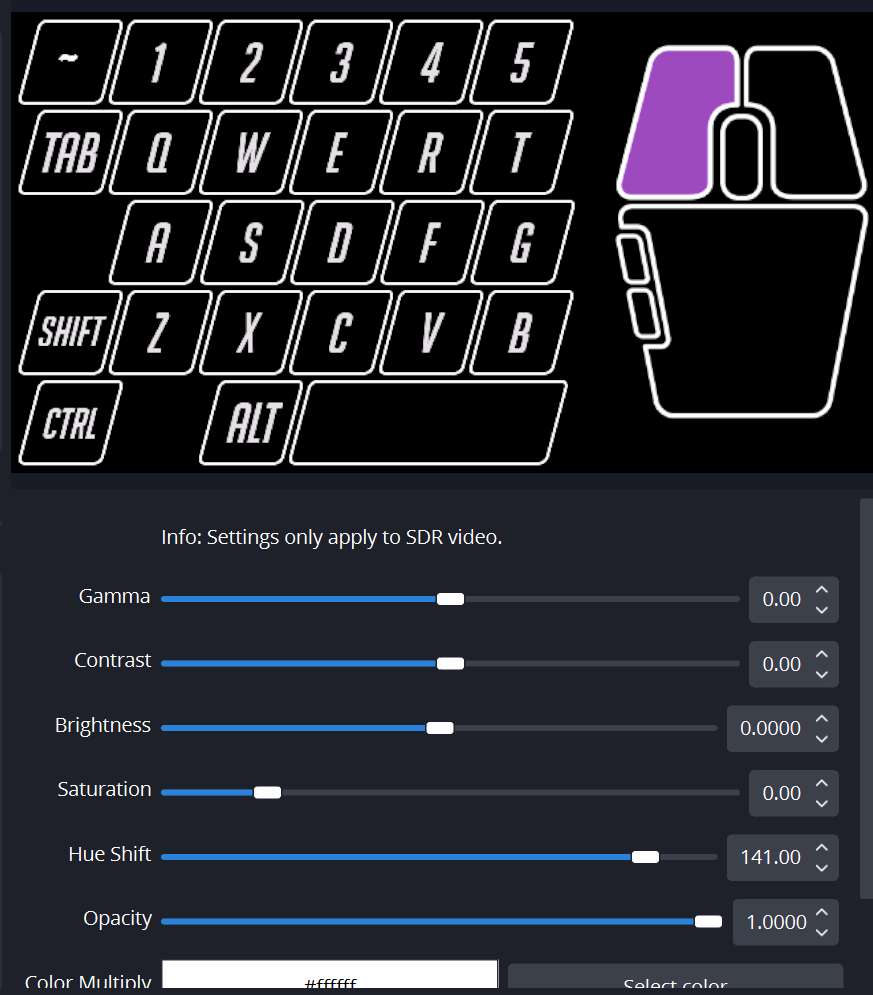
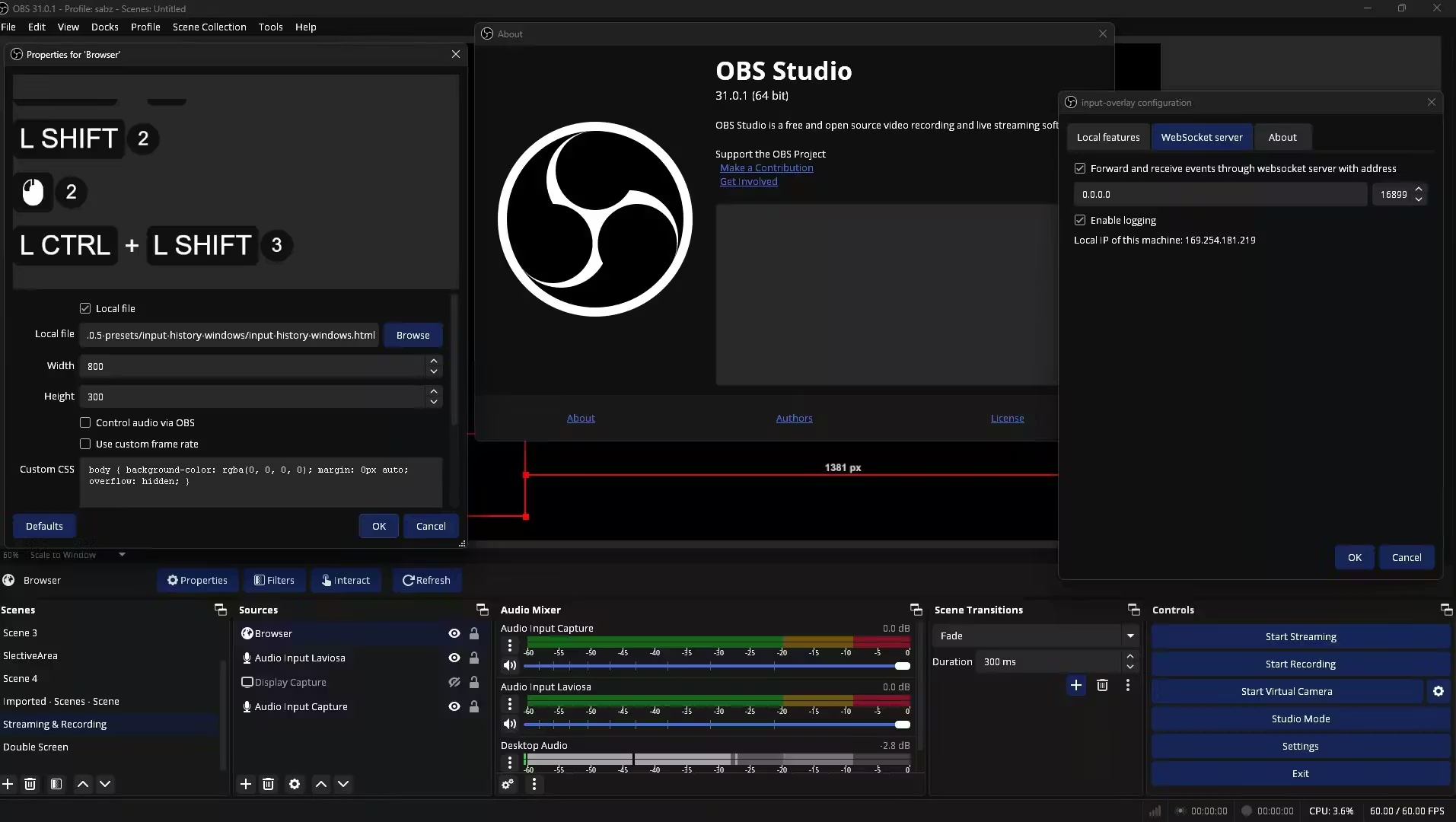
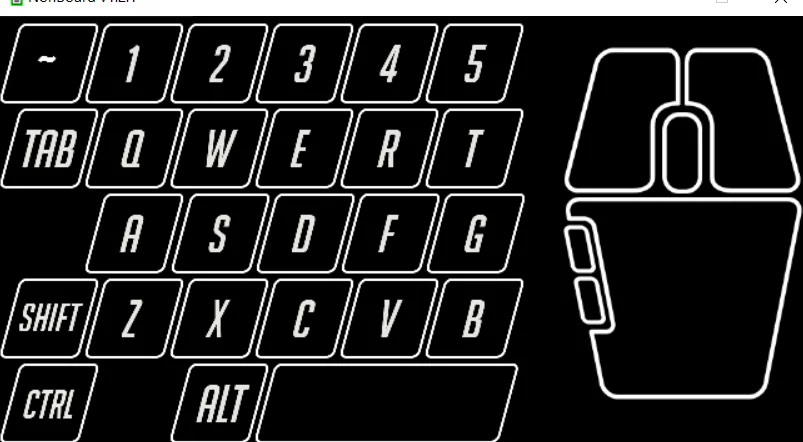
See NohBoard in action across different setups and configurations. From basic keyboard overlays to advanced streaming integrations, these screenshots show what NohBoard looks like during real use.
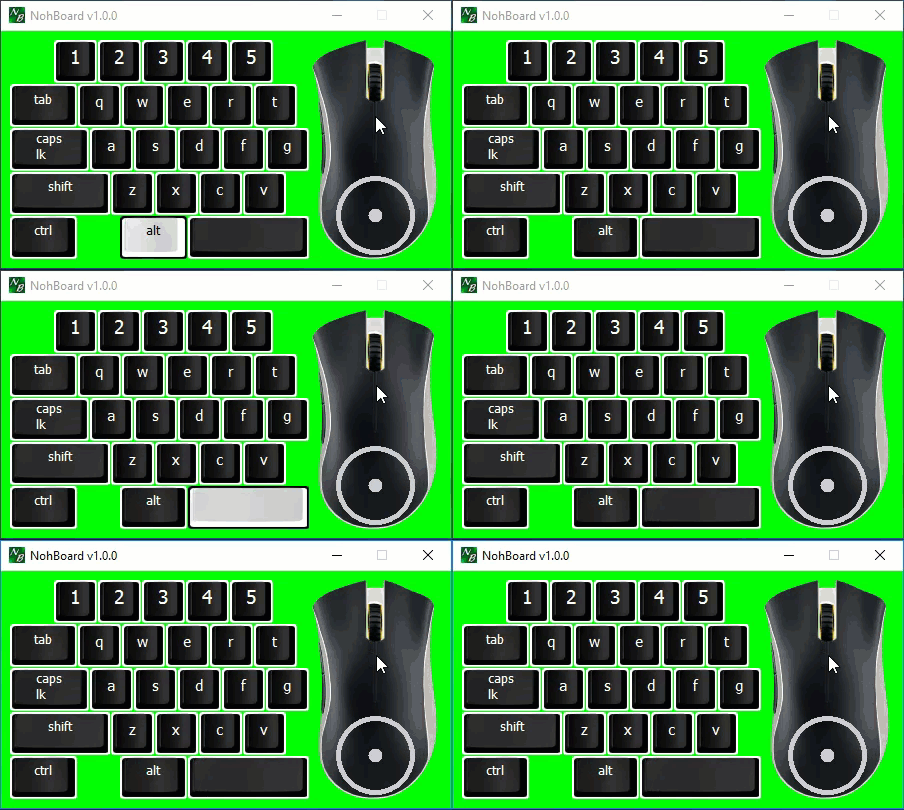
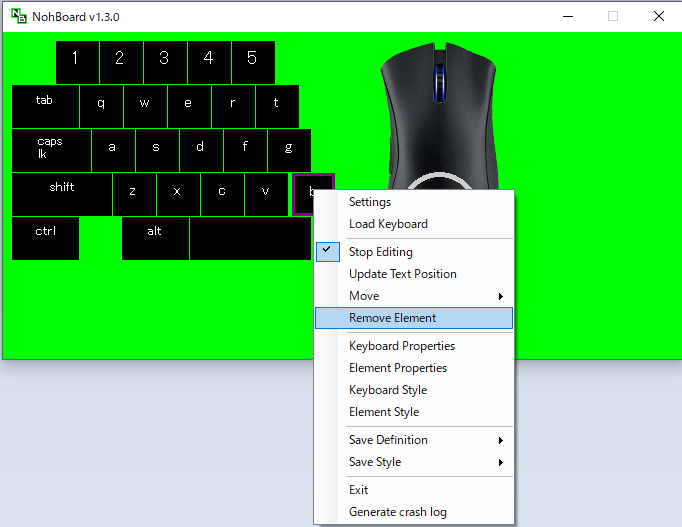
Screenshots from the official NohBoard project and community sources
Getting Started with NohBoard
From download to live on your stream in under ten minutes. Here is everything you need to set up NohBoard and start showing your keystrokes on screen.
Downloading NohBoard
Head to our download section above to grab the latest release of NohBoard. The current version is v1.3.0 (also called “The Corona Update”), which is the most recent stable build from developer Eric Bataille. The download comes as a single ZIP archive weighing roughly 3 MB, so even on slower connections it will finish in seconds.
NohBoard is a portable application. There is no .exe installer or .msi package to deal with. You download a ZIP file, extract it to any folder you like, and run it directly. This means you can keep NohBoard on a USB drive, move it between PCs, or drop it straight into your streaming tools folder without worrying about registry entries or system-level changes.
There is only one version available, compiled for Windows (7, 8, 10, and 11 all supported). NohBoard does not have separate 32-bit and 64-bit installers since the .NET Framework build runs on both architectures. If you are on macOS or Linux, check out NuhxBoard, a community-maintained cross-platform port that reads the same layout format.
C:ToolsNohBoard for the extracted files. Keeping your streaming utilities in one place makes OBS configuration faster down the road.
Installation Walkthrough
Because NohBoard is portable, “installation” is really just extracting and launching. Here is exactly what to do:
- Extract the ZIP — Right-click
NohBoard-ReWrite-v1.3.0.zipand choose “Extract All” (or use 7-Zip / WinRAR). Pick a permanent folder. You will seeNohBoard.exeplus akeyboardsfolder containing layout files. - Check .NET Framework — NohBoard requires .NET Framework 4.5 or later. Windows 10 and 11 include this by default. On Windows 7 or 8, open Control Panel → Programs → Turn Windows features on or off and confirm “.NET Framework 4.5” is checked. If missing, grab it from Microsoft’s download page.
- Launch NohBoard.exe — Double-click the executable. On first launch, Windows SmartScreen may pop up with a “Windows protected your PC” warning because the app is unsigned. Click “More info”, then “Run anyway”. This is normal for open-source software distributed outside the Microsoft Store.
- Run as Administrator (recommended) — Right-click
NohBoard.exeand select “Run as administrator.” Admin privileges let NohBoard capture keystrokes globally, including inside fullscreen games. Without admin rights, some key presses may not register while a game is in the foreground. - Pin it for quick access — Right-click the running NohBoard icon in the taskbar and choose “Pin to taskbar” so you can launch it before every stream without hunting for the folder.
No registration, no license key, no account creation. NohBoard is free and open source under the GPL license. After the first launch you will see a small floating window showing a default keyboard layout with keys lighting up as you type.
Initial Setup & Configuration
Right-click anywhere on the NohBoard window to open the context menu. This is your control center for every setting. There is no traditional menu bar — everything lives in this right-click menu.
Load a keyboard layout: Go to Settings in the right-click menu. Under the “Keyboard” dropdown, you will see “Global” plus any category folders. Select a category (like “popular” or “global”), then pick a specific layout from the second dropdown. NohBoard ships with several preset layouts including full-size keyboards, TKL (tenkeyless), and focused WASD gaming layouts. Click “Load” to apply.
Settings to change right away:
- Mouse Sensitivity — In Settings, adjust the mouse speed indicator value. A value between 30 and 60 works well for most gaming mice at 800-1600 DPI.
- Display Duration — Under Settings, find the key press display time. The default keeps keys highlighted briefly after release. For streaming, bump this to 100-200ms so viewers can see which keys you pressed even during fast gameplay.
- Follow Caps Lock — Enable this if you want the displayed letters to switch between upper and lowercase based on your actual Caps Lock state.
- Trap Mouse — Leave disabled unless you specifically need to contain mouse speed tracking within a boundary.
Your First Streaming Overlay
Let’s walk through adding NohBoard to an OBS Studio scene so your viewers can see your keyboard and mouse inputs live.
- Set a solid background color — In NohBoard, right-click and choose Settings. Change the background color to a bright green (
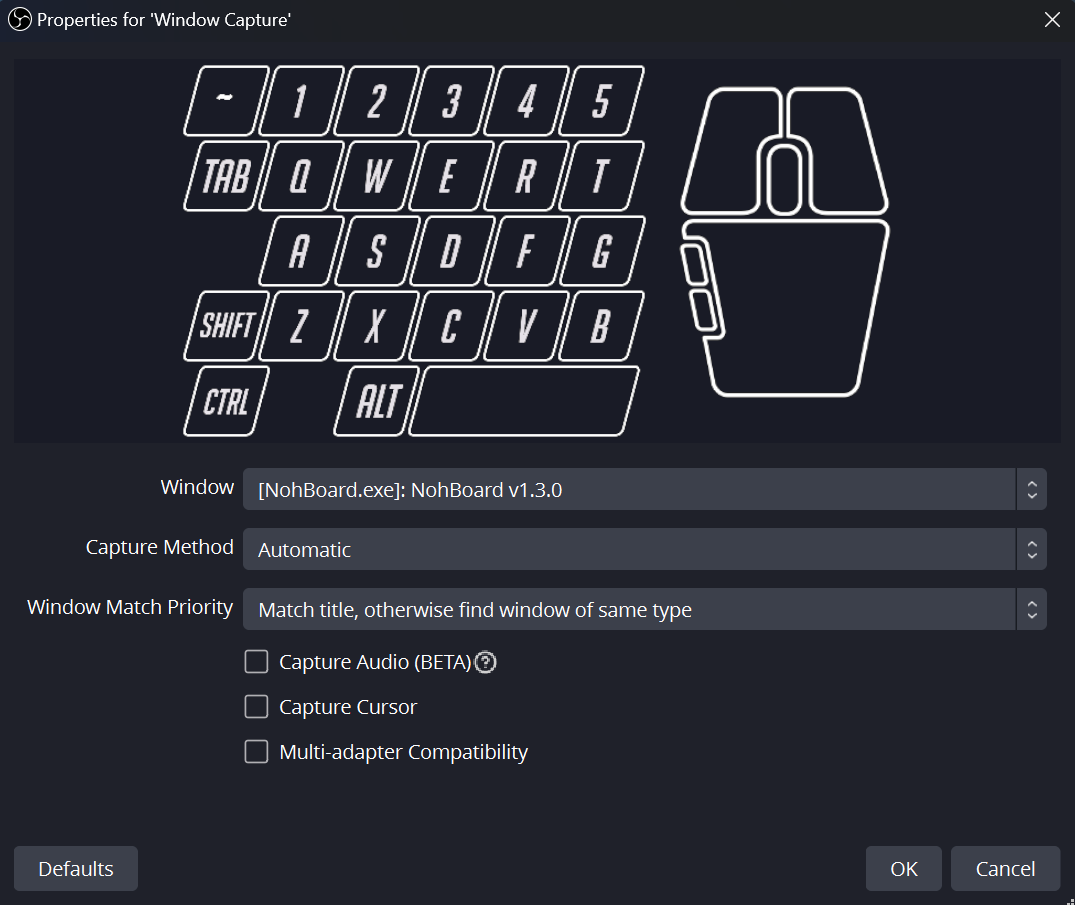
#00FF00) or another solid color that does not appear in the keyboard graphics. This will be your chroma key color. - Open OBS Studio — In your scene, click the + button under Sources and select “Window Capture”. Name it something like “Keyboard Overlay.”
- Select the NohBoard window — In the Window dropdown, find
[NohBoard.exe]: NohBoard. Make sure “Capture Method” is set to automatic. Click OK. - Crop the capture — Hold Alt and drag the edges of the NohBoard source in the OBS preview to crop away any extra window border or padding. You want just the keyboard area visible.
- Apply Chroma Key — Right-click the NohBoard source in OBS, go to Filters, click + under Effect Filters, and add a “Chroma Key” filter. Set the Key Color Type to “Green” (or “Custom” if you picked a different background). Adjust “Similarity” until the green background disappears completely, leaving just the keyboard floating over your game.
- Position and resize — Drag the overlay to a corner of your stream layout, usually bottom-left or bottom-right. Scale it down so it is visible but not distracting.
Press some keys to test. You should see keys lighting up on the overlay in real time with zero noticeable delay. NohBoard uses low-level keyboard hooks through the Windows API, so input capture happens at the system level with minimal latency.
Customizing key styles: Right-click the NohBoard window and select “Start Editing” to enter Edit Mode. In this mode you can:
- Click and drag individual keys to reposition them
- Right-click a key to change its font, text color, background color, and border
- Set different colors for the “pressed” state versus the “released” state
- Add images to key caps (your own PNGs or icons)
- Resize keys by dragging their boundary handles
When finished, right-click and select “Stop Editing” to lock everything in place. Your changes save to the layout file automatically.
| Action | How To |
|---|---|
| Open Settings | Right-click NohBoard window |
| Enter Edit Mode | Right-click → Start Editing |
| Move a key | Edit Mode → click and drag key |
| Edit key style | Edit Mode → right-click a key |
| Exit Edit Mode | Right-click → Stop Editing |
| Change layout | Settings → Keyboard dropdown → Load |
Tips, Tricks & Best Practices
Performance: NohBoard uses GDI+ rendering and barely touches your CPU. It typically consumes under 10 MB of RAM and less than 1% CPU even during intense gaming sessions. Leave it running in the background without worrying about frame drops in your game.
Common beginner mistakes:
- Forgetting to run as administrator — keys won’t register in fullscreen games without admin rights
- Using a background color that matches key colors — pick a chroma color (bright green or magenta) that has no overlap with your key styling
- Not restarting after layout changes — some layout swaps need a fresh launch to render properly
Power-user features most people miss:
- Custom layout files — Edit the
.jsonfiles inside thekeyboardsfolder with any text editor. You can define exact pixel positions, key sizes, and labels for a fully custom layout matching your specific keyboard model. - Mouse speed indicator — NohBoard can display a directional mouse speed overlay alongside keyboard input. Enable it in Settings for a complete input visualization.
- Community layouts — The NohBoard community shares ready-made layouts on GitHub, Reddit (r/obs), and the OBS Forums. Drop downloaded layout folders into your
keyboardsdirectory and they appear in Settings immediately. - Scroll counter — NohBoard tracks and displays mouse scroll wheel activity, which is useful for showcasing weapon switching or zoom actions in FPS games.
Where to get help: The official GitHub repository at github.com/ThoNohT/NohBoard has the issue tracker and release notes. For community support, check the NohBoard page on OBS Forums or search r/obs on Reddit where users regularly share layout configs and troubleshooting tips. For graphical layout editing, look into NohBoardHelper on GitHub, which provides a visual drag-and-drop editor for creating custom layout files.
Staying updated: NohBoard does not have an auto-update feature. Bookmark the download section on this page or watch the GitHub releases page to check for new versions. Updates are infrequent but worth grabbing when they appear.
Ready to get NohBoard on your stream? Download NohBoard now and follow the steps above.
Frequently Asked Questions
Answers to the most common questions about downloading, setting up, and using NohBoard for streaming and content creation.
Is NohBoard safe to download and use?
Yes, NohBoard is safe to download and use. The program is open-source under the GPL license, and its full source code is publicly available on GitHub at github.com/ThoNohT/NohBoard. Anyone can inspect exactly what the application does before running it.
NohBoard version 1.3.0 (the latest release, sometimes called “The Corona Update”) is a ~3 MB ZIP file that contains a portable .exe built with C# and .NET Framework. The executable has been scanned by major antivirus engines and comes back clean. Because it uses low-level keyboard hooks to capture keystrokes for the on-screen display, some antivirus programs may flag it as suspicious – this is a false positive common with keyboard monitoring software. Windows SmartScreen may also show a warning because the file is not code-signed; click “More info” and then “Run anyway” to proceed.
- Download only from the official GitHub releases page or from our download section
- Avoid third-party download sites that may bundle adware or modified versions
- Check the file size – the legitimate ZIP should be approximately 3 MB
- Verify the SHA hash against what the GitHub release page shows if you want extra certainty
Pro tip: If Windows Defender flags NohBoard, add an exclusion for the folder where you extracted it rather than disabling your antivirus entirely.
For verified download links, visit our download section.
Where is the official safe download for NohBoard?
The official safe download for NohBoard is hosted on GitHub at github.com/ThoNohT/NohBoard/releases. This is where the developer, Eric “ThoNohT” Bataille, publishes every release directly.
The latest version is NohBoard 1.3.0, released on April 11, 2020. The download is a ZIP archive of roughly 3 MB that contains the portable executable and required files. There is no installer – you simply extract the ZIP and run NohBoard.exe. The GitHub releases page also lists the NohBoard-ReColor fork for users who want extra color customization features. Our download section links directly to the official GitHub release.
- Go to our download section and click the download button
- Or visit the GitHub releases page: github.com/ThoNohT/NohBoard/releases
- Download the file named
NohBoard.zip(not the source code archive) - Extract to any folder and run
NohBoard.exe
Pro tip: Avoid SourceForge and other mirror sites for NohBoard. Some host outdated versions or bundle unwanted software. The GitHub repository is the only place the developer publishes official builds.
See our Getting Started guide for a full walkthrough of the download and setup process.
Does NohBoard work on Windows 11?
Yes, NohBoard works on Windows 11 without any issues. It runs on all modern Windows versions from Windows 7 through Windows 11, including both 64-bit and 32-bit editions.
NohBoard is a lightweight C# application built on .NET Framework 4.5+, which is included with Windows 10 and 11 by default. You do not need to install any extra runtimes on a modern Windows system. Some users on the GitHub issues page have reported needing to run NohBoard as administrator on Windows 11 for the keyboard hooks to register properly, particularly when running fullscreen games. This is a Windows security restriction, not a NohBoard bug.
- Right-click NohBoard.exe and select “Run as administrator”
- For permanent admin mode: right-click the .exe, go to Properties > Compatibility > check “Run this program as an administrator”
- If keys stop registering after an Alt-Tab, bring the NohBoard window back to focus briefly
Pro tip: On Windows 11, if you use the “Focus Assist” or “Do Not Disturb” feature, NohBoard will still work in the background as long as it was started with admin privileges. Make sure your OBS window capture source is set to capture NohBoard even when it loses focus.
Check our system requirements for the full compatibility list.
Does NohBoard work on macOS or Linux?
No, NohBoard does not run natively on macOS or Linux. It is a Windows-only application built with C# and .NET Framework using GDI+ for rendering, which ties it to the Windows platform.
NohBoard relies on Windows-specific low-level keyboard hooks (specifically the SetWindowsHookEx API) to intercept and display keystrokes. This functionality has no direct equivalent on macOS or Linux. The developer has not announced plans for cross-platform support. Some users have attempted running NohBoard through Wine on Linux with mixed results – the keyboard hooks generally do not work correctly under Wine.
- macOS alternative: Keyviz is a free, open-source keystroke visualizer that works on macOS, Windows, and Linux
- Linux alternative: Screenkey is a popular open-source option for Linux that displays keypresses on screen
- Cross-platform OBS option: Input Overlay is an OBS plugin that works on Windows and Linux with native gamepad support
Pro tip: If you use OBS on Linux, Input Overlay (github.com/univrsal/input-overlay) is probably the closest equivalent to NohBoard. It runs as a native OBS source rather than a separate window, which can be more convenient for multi-monitor setups.
See our features section for what makes NohBoard the top choice on Windows.
What are the system requirements for NohBoard?
NohBoard has very low system requirements. It was designed to run alongside games and streaming software without noticeable performance impact.
The application needs Windows 7 or later (64-bit recommended), .NET Framework 4.5 or higher (pre-installed on Windows 10/11), and minimal free disk space since the entire program is under 3 MB. NohBoard uses almost no CPU or RAM during normal operation – typically under 20 MB of memory and less than 1% CPU. It has no GPU requirements because it renders through GDI+ rather than DirectX or OpenGL. This makes it suitable even for low-end machines or older laptops used for streaming.
- OS: Windows 7, 8, 8.1, 10, or 11
- Runtime: .NET Framework 4.5+ (already on Windows 10/11)
- RAM: Under 20 MB used at runtime
- Disk: ~3 MB for the portable ZIP
- CPU: Any modern processor (negligible usage)
- GPU: Not required
Pro tip: If you are running NohBoard alongside a resource-heavy game, close any other overlay tools you are not using. NohBoard itself is not the performance bottleneck, but stacking multiple overlays can add up.
View the detailed breakdown in our system requirements table.
Is NohBoard completely free to download and use?
Yes, NohBoard is 100% free to download and use. There are no paid tiers, no premium features locked behind a paywall, and no subscriptions.
NohBoard is released under the GNU General Public License (GPL), which means the source code is open and anyone can use, modify, and distribute it. Eric Bataille created the project specifically because existing keyboard visualizers at the time were either paid or difficult to use. The program has been free since its first release and there are no plans to monetize it. The GitHub repository (github.com/ThoNohT/NohBoard) contains the full C# source code if you want to build it yourself or create a custom fork.
- No registration or account creation needed
- No trial period or feature limitations
- No ads, no bundled software, no data collection
- The NohBoard-ReColor fork is also free and adds extra customization options
Pro tip: Since NohBoard is GPL-licensed, you can legally modify the source code. Several community forks exist on GitHub with extra features like ReColor support, additional layout options, and controller input visualization.
Download the latest version from our download section – no payment or sign-up required.
Is there a paid or premium version of NohBoard?
No, there is no paid or premium version of NohBoard. The application is entirely free and open-source under the GPL license. Every feature is available to all users at no cost.
Unlike some competing keyboard overlay tools that offer “pro” or “premium” tiers with extra layouts or gamepad support, NohBoard gives you everything in a single free download. This includes the full layout editor, custom fonts, per-key color and image support, mouse button and scroll wheel visualization, the mouse speed indicator, and chroma key compatibility. The ~3 MB download from GitHub contains the complete application with no locked features.
- All customization features are free: fonts, colors, images, layouts
- Community-shared layouts can be imported at no cost
- The NohBoard-ReColor fork adds additional color customization, also free
- No watermarks or branding forced onto your stream overlay
Pro tip: If you find NohBoard useful, consider starring the GitHub repository or reporting bugs. Open-source projects depend on community feedback. The developer also accepts community-contributed keyboard layouts.
Learn about all available features in our features overview.
How do I download and install NohBoard step by step?
NohBoard does not require installation. It is a portable application that runs directly from a folder after extracting a ZIP file.
The entire setup takes under two minutes. NohBoard version 1.3.0 is distributed as a ZIP archive of approximately 3 MB. You download the ZIP, extract it to any location on your PC, and run the executable. No installer wizard, no registry modifications, no system-level changes. This portability also means you can carry NohBoard on a USB drive and use it on any Windows machine without installing anything.
- Visit our download section and click the download button to get NohBoard.zip
- Right-click the downloaded ZIP file and select “Extract All” (or use 7-Zip/WinRAR)
- Open the extracted folder and right-click NohBoard.exe, then select “Run as administrator”
- NohBoard opens as a small transparent window – right-click it to access settings
- Select a keyboard layout from the right-click menu under “Load Keyboard” (several default layouts are included)
- In OBS Studio, add a Window Capture source and select the NohBoard window, then apply a Color Key filter to remove the background
Pro tip: Create a shortcut to NohBoard.exe on your desktop and set it to always run as administrator (Properties > Compatibility > Run as administrator). This saves you from right-clicking every time you launch it before a stream.
For a more detailed walkthrough, read our Getting Started guide.
How do I add NohBoard to OBS Studio?
Adding NohBoard to OBS Studio takes about 30 seconds. You capture the NohBoard window and apply a color key filter for a transparent background overlay on your stream.
NohBoard runs as a standalone window that OBS picks up through Window Capture. The default NohBoard background is a solid color (typically green or blue, depending on your settings), which OBS can remove with a built-in Color Key or Chroma Key filter. This gives you a clean keyboard overlay floating on top of your gameplay footage. The method works in OBS Studio 28+ and Streamlabs OBS.
- Start NohBoard first and load your preferred keyboard layout
- In OBS, click the “+” button under Sources and choose “Window Capture”
- Name the source (e.g., “Keyboard Overlay”) and select the NohBoard window from the dropdown
- Right-click the new source, go to Filters, and add a “Color Key” or “Chroma Key” effect filter
- Set the key color to match NohBoard’s background color (default is green)
- Adjust the similarity and smoothness sliders until the background disappears cleanly
Pro tip: Use “Color Key” instead of “Chroma Key” in OBS for NohBoard – it handles solid-color backgrounds more reliably. Set the background in NohBoard to a bright green (#00FF00) for the cleanest key removal.
Our Getting Started guide covers OBS integration with screenshots.
NohBoard portable vs installer – which should I choose?
NohBoard only comes as a portable application. There is no installer version. You download a ZIP file, extract it, and run the executable directly.
This portable-only approach is actually a benefit for streamers. NohBoard makes zero changes to your Windows registry, does not add startup entries, and does not install background services. Everything the program needs lives inside its own folder. Your custom layouts, keyboard definitions, and style configurations are all stored alongside the .exe in the same directory. This means you can back up your entire NohBoard setup by copying one folder.
- Extract the ~3 MB ZIP to any folder (Desktop, Documents, or a USB drive)
- All settings and layouts are saved in the
keyboardssubfolder next to the .exe - To move NohBoard to another PC, just copy the entire folder
- To uninstall, delete the folder – nothing else to clean up
Pro tip: Keep NohBoard in a dedicated folder like C:ToolsNohBoard rather than running it from the Downloads folder. Some users accidentally delete the Downloads folder contents and lose their custom keyboard layouts.
Visit our download section to get the portable ZIP file.
How to fix NohBoard not detecting key presses?
The most common reason NohBoard stops detecting key presses is that it is not running with administrator privileges. Windows blocks low-level keyboard hooks from non-elevated processes when a fullscreen or elevated application has focus.
This issue shows up frequently in GitHub issues (#60 is one of the most-referenced threads) and Reddit discussions. When you Alt-Tab to a game or any application running with higher privileges than NohBoard, the keyboard hooks lose their connection. The overlay stays visible in OBS but keys stop highlighting. Running as administrator resolves this in most cases. If it still fails, the game may be using exclusive fullscreen mode, which blocks all external hooks regardless of elevation.
- Close NohBoard completely
- Right-click NohBoard.exe and select “Run as administrator”
- If that fixes it: go to Properties > Compatibility > check “Run this program as an administrator” for a permanent fix
- If keys still do not register: switch your game from “Exclusive Fullscreen” to “Borderless Windowed” mode
- As a last resort: check if another program is intercepting keyboard hooks (macro software, key remappers, or other overlays)
Pro tip: Some anti-cheat systems (like Vanguard or Easy Anti-Cheat) block keyboard hooks from third-party apps. If NohBoard stops working only in specific games, the anti-cheat is probably the cause. There is no workaround for this – it is by design.
For more setup help, read our Getting Started guide.
Why does NohBoard cause mouse lag or jitter?
Mouse lag or jitter while NohBoard is running is a known issue reported by some users, particularly those with Logitech mice. This happens because NohBoard hooks into the mouse input pipeline to track clicks and movement for the mouse speed indicator.
GitHub issue #96 documents this problem specifically with Logitech mice and certain Razer models. The mouse hook processing adds a tiny delay (usually under 1ms) to each mouse event, which can cause noticeable stutter at high polling rates (1000Hz+). Users running borderless windowed games tend to notice it more than those in windowed mode. The issue is more pronounced when the mouse speed indicator is enabled because NohBoard calculates velocity for every mouse movement event.
- Try disabling the mouse speed indicator: right-click NohBoard > uncheck “Show mouse speed”
- If you only need keyboard visualization, remove all mouse buttons from your layout entirely
- Lower your mouse polling rate from 1000Hz to 500Hz temporarily while streaming
- Make sure NohBoard is running as administrator – non-elevated hooks can cause additional latency
- Close other mouse-hooking software (Logitech G Hub overlay, Razer Synapse overlay)
Pro tip: If you want mouse click visualization without the lag, consider using the NohBoard-ReColor fork which has optimized mouse hook handling. Alternatively, show only keyboard inputs and use OBS’s built-in cursor highlight for mouse clicks.
Check our features page for details on NohBoard’s mouse visualization options.
NohBoard stopped working after a Windows update – how to fix?
Windows updates occasionally reset security permissions that NohBoard depends on. The fix is usually to re-enable administrator mode and, in some cases, reinstall .NET Framework.
Major Windows feature updates (like 22H2 to 23H2, or the 24H2 update) can reset the “Run as administrator” compatibility flag on applications. They can also update .NET Framework to a version that changes how keyboard hooks behave. If NohBoard worked fine before a Windows update and suddenly stopped, the update almost certainly changed one of these two things. In rare cases, Windows Defender definitions update and start flagging NohBoard’s keyboard hook as suspicious, quarantining the .exe silently.
- Check if NohBoard.exe is still in your folder – Windows Defender may have quarantined it (check Defender > Protection History)
- Re-set the “Run as administrator” flag: right-click .exe > Properties > Compatibility
- If you get a .NET error: open Command Prompt as admin and run
sfc /scannowto repair system files - Re-download NohBoard 1.3.0 from GitHub if the .exe was removed or corrupted
- Add NohBoard’s folder to Windows Defender exclusions: Settings > Virus & threat protection > Exclusions
Pro tip: After any major Windows update, do a quick test of NohBoard before going live on stream. Launch it, press a few keys, confirm they light up, and check that OBS still captures the window correctly.
Download a fresh copy from our download section if your existing file was corrupted.
How do I update NohBoard to the latest version?
NohBoard does not have an auto-update feature. To update, download the latest release from GitHub and replace your existing files.
The current latest version is NohBoard 1.3.0, released on April 11, 2020 (nicknamed “The Corona Update”). Development has slowed since then, but the version remains stable and fully functional. If a new version is released, the GitHub releases page at github.com/ThoNohT/NohBoard/releases will have the download. Since NohBoard is portable, updating means downloading the new ZIP, extracting it, and copying over your custom layouts from the old folder’s keyboards directory.
- Check the GitHub releases page for any version newer than 1.3.0
- Download the new NohBoard.zip
- Extract it to a new folder (do not overwrite the old folder yet)
- Copy the
keyboardsfolder from your old NohBoard directory into the new one to keep your custom layouts - Test the new version, then delete the old folder
Pro tip: Before updating, take a screenshot of your current NohBoard layout settings (right-click > Edit mode > look at your key positions). If something goes wrong with the layout import, you can rebuild it quickly from the screenshot.
Get the latest version from our download section.
What is new in NohBoard version 1.3.0?
NohBoard 1.3.0, released April 11, 2020, is the most recent official release. It includes several bug fixes and stability improvements over previous versions.
The 1.3.0 update (called “The Corona Update” by the developer) fixed issues with duplicate element IDs when loading keyboards, a bug where NohBoard disappeared when closing while minimized, boundary movement problems in the editor, key definition resets after clicking in the NohBoard window, and boundary removal bugs. These were primarily editor and stability fixes contributed by community member Buttercak3. The core visualization and hook functionality remained the same as 1.2.0.
- Fixed: duplicate element ID check when loading keyboard layouts
- Fixed: NohBoard window disappearing when closed while minimized
- Fixed: boundaries could not be moved down in the list
- Fixed: key definition resetting after clicking anywhere in the window
- Fixed: removing boundaries when fewer than 3 remained via properties
- Community contributions from Buttercak3 for editor stability
Pro tip: If you need features beyond what 1.3.0 offers, check the NohBoard-ReColor fork on GitHub. It adds advanced color themes and additional customization options that the main branch does not have.
Read about all NohBoard capabilities in our features section.
NohBoard vs Input Overlay – which keyboard visualizer is better?
NohBoard and Input Overlay serve similar purposes but work differently. NohBoard is a standalone application you capture in OBS, while Input Overlay is a native OBS plugin that adds a source directly. The better choice depends on whether you need simplicity or deep OBS integration.
NohBoard is easier to set up for beginners – download, extract, run, and capture the window. It excels at keyboard and mouse visualization with a drag-and-drop layout editor. Input Overlay (github.com/univrsal/input-overlay) requires more configuration but supports gamepad input, custom texture overlays, and WebSocket remote control. Input Overlay renders as a native OBS source, which means no window capture or chroma key needed. However, Input Overlay has a steeper learning curve and requires creating or downloading preset configuration files.
- Choose NohBoard if: you want quick setup, only need keyboard/mouse, and prefer a visual layout editor
- Choose Input Overlay if: you need gamepad support, want a native OBS source, or need remote control via WebSocket
- Performance: Input Overlay has slightly lower overhead since it renders inside OBS, but NohBoard’s impact is negligible on modern hardware
- Platform: NohBoard is Windows-only; Input Overlay works on Windows and Linux
Pro tip: You can run both tools simultaneously if you want keyboard visualization from NohBoard (with its nicer editor) and gamepad visualization from Input Overlay. They do not conflict with each other.
See what makes NohBoard stand out in our features overview.
How do I create a custom keyboard layout in NohBoard?
NohBoard includes a built-in layout editor that lets you create fully custom keyboard layouts through drag-and-drop. You can position, resize, and style every individual key.
The editor (activated by right-clicking the NohBoard window and selecting “Start Editing”) turns NohBoard into a WYSIWYG layout designer. You can add keyboard keys, mouse buttons, and scroll indicators, then assign specific key codes to each element. Each key can have its own unpressed style, pressed style, font, image, and boundary shape. Layouts are saved as JSON files in the keyboards subfolder, organized into categories. Community members share their layouts on GitHub and Reddit, and you can import those by copying the folder into your keyboards directory.
- Right-click the NohBoard window and select “Start Editing”
- Right-click again inside the window to add a new key element
- Set the key code for each element (use toptal.com/developers/keycode to find JavaScript key codes)
- Drag keys to position them and resize using the boundary handles
- Right-click a key to edit its style: colors, font, pressed/unpressed images
- When finished, right-click and select “Stop Editing” to save
Pro tip: For WASD-only gaming overlays, create a minimal layout with just W, A, S, D and mouse buttons. Smaller overlays look cleaner on stream and take less screen space. You can use the key code tool at toptal.com/developers/keycode to find the correct code for any key.
Our Getting Started guide walks through layout customization in detail.
How do I uninstall NohBoard completely?
Uninstalling NohBoard is as simple as deleting its folder. Since it is a portable application, it does not write to the Windows registry, create system services, or leave files in AppData.
NohBoard stores everything – the executable, layouts, styles, and configuration – inside the folder where you extracted the ZIP. There is no installer to reverse and no “Add/Remove Programs” entry. If you set NohBoard.exe to run as administrator through the compatibility settings, Windows stores that preference in the registry under HKCUSoftwareMicrosoftWindows NTCurrentVersionAppCompatFlagsLayers, but this single entry has no functional impact and gets cleaned up automatically over time.
- Close NohBoard if it is running (check the system tray)
- Navigate to the folder where you extracted NohBoard
- Delete the entire folder
- Optionally: remove the NohBoard window capture source from OBS Studio
- Optionally: remove any Windows Defender exclusions you added for NohBoard
Pro tip: Before deleting, export your custom layouts by copying the keyboards subfolder to a backup location. If you ever reinstall NohBoard, you can drop those layouts right back in without rebuilding them from scratch.
If you want to reinstall later, grab it from our download section.
Does NohBoard work offline without an internet connection?
Yes, NohBoard works entirely offline. It does not require an internet connection for any of its features, including keyboard visualization, layout editing, and OBS integration.
NohBoard is a self-contained desktop application that processes keyboard and mouse input locally through Windows API hooks. It does not phone home, check for updates online, or send telemetry data. The only time you need internet is to download the initial ZIP file from GitHub. After that, every function – loading layouts, editing key styles, running the visualization, capturing in OBS – works without a network connection. This also means NohBoard has no login system, no cloud sync, and no online dependency that could break.
- All layout files are stored locally in the
keyboardsfolder - No internet check on startup – the app launches instantly
- No telemetry, analytics, or usage data sent anywhere
- Custom fonts must be installed on your system since NohBoard references local font files
Pro tip: Because NohBoard works fully offline, it is a solid choice for tournament or LAN event setups where internet access may be restricted or unreliable. Pack it on a USB drive with your layouts pre-configured.
Learn more about NohBoard’s privacy-respecting design in our features section.
Still have questions? Check our Getting Started guide or visit the NohBoard GitHub repository for community support.